Hereditament
The hereditament view is the destination every result-row click leads to. Open one from a search, a portfolio, a prospecting run, or a comparables result; read its valuation history across rating lists, its ratepayer history with rates charges, every relief charged against it, and the hereditaments most like it. Two framings: a side panel slides in over the source list (the row-click default), or the same content fills the full page (direct URL, share-link, "Open full page" from the side panel). Body identical; framing differs.
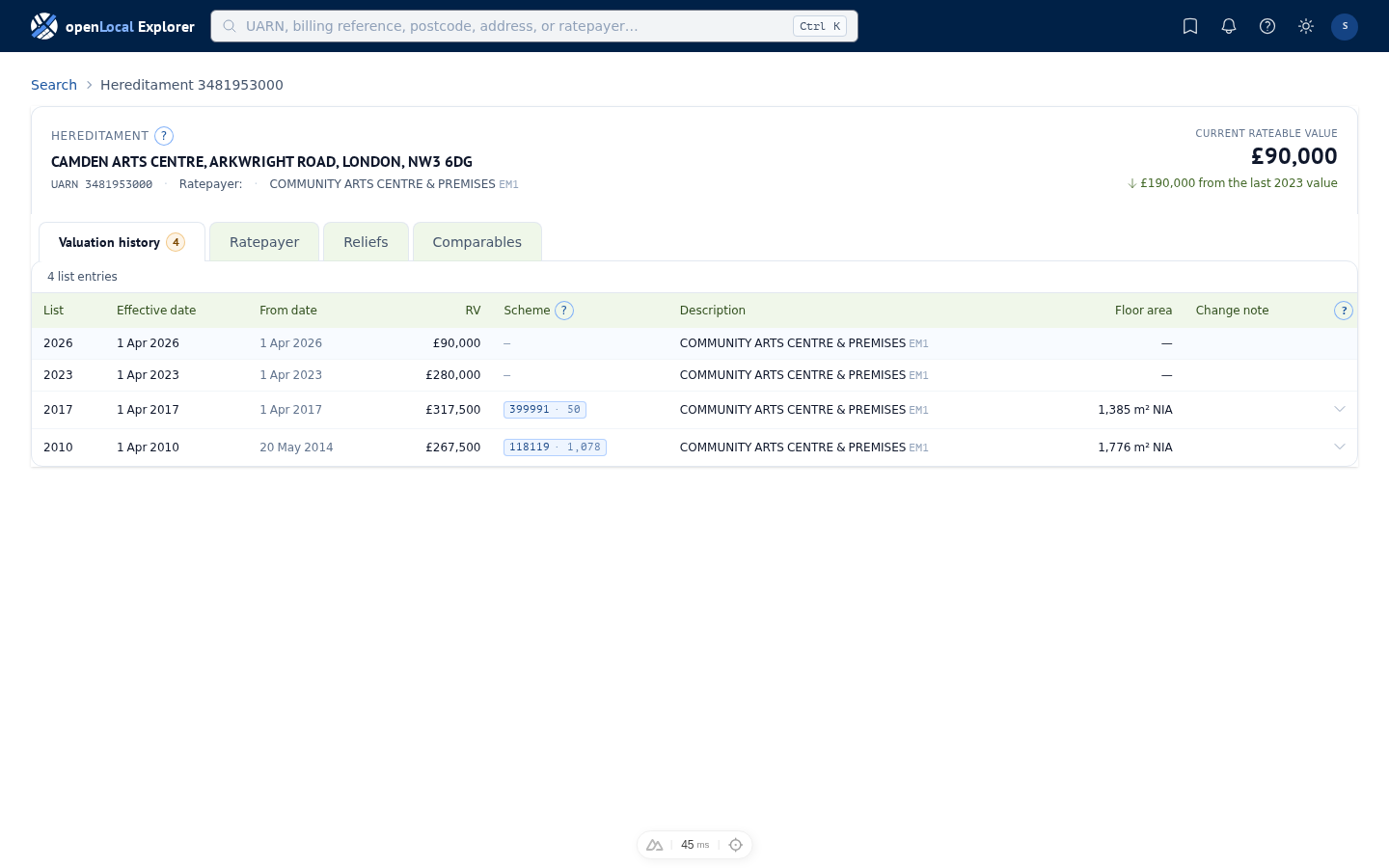
Universal header
Address, identifier (UARN), ratepayer, and category read across the top — left to right in the order a surveyor reads. The current rateable value sits top-right with the revaluation delta beside it. Where the VOA has deleted the entry, or its only entry never took effect, a mark takes the value's place instead; see Deleted entries. Beside the billing authority, a row of small squares shows where the ratepayer record came from; see Where the record came from. The same header shows in both framings; only the chrome differs.
Where the record came from
The squares beside the billing authority say how recently a council file carried the ratepayer record the header names, and what the latest file said of it. Each square is one quarter of a year.
Folded, the mark shows at most two quarters: the last time a council file carried this record unchanged, and the latest quarter the council sent anything, in what that file said of the record. Click it to open the record's track: the quarter we first received the record, then each quarter since, up to the last eight. A key to the squares opens beneath it, and closes with it. The authority's name before the mark opens its history: every quarter we collected from it.
| Square | Means |
|---|---|
| Filled, with a hole | The file we first received this record from |
| Filled | Confirmed: a council file carried this record again, unchanged |
| Hatched | The file carried a different record at this property |
| Outlined | The council sent files, and this record was not in them |
| Dashed and pale | Nothing from the council that quarter |
| Dashed and crossed | Stopped: the VOA deleted the property, so no further files are expected |
A dot under a square means that quarter's files carried reliefs, for any property. A square without a dot among squares with them is worth a look: the council published reliefs that quarter, and none for this record.
Confirmed means the council sent the same record again, every detail the same. Councils often vary small details between files, such as Ltd and Limited, so a different record can still be the same occupier; the Ratepayer history shows what changed. An old date is not a fault: if the council has sent nothing newer, the record is still what we know as of that date.
A file sits in the quarter of the newest business date inside it, which can be earlier than the day we collected it. Where the property was deleted, the track ends at the last quarter a council file told us anything about it, even if that came after the deletion.
Revaluation delta
The figure next to the current RV reads against the most recent prior list value — e.g. "↓ £3,500 from last 2023 value" when the 2023 list closed at £32,000 and the 2026 list opened at £28,500. "Last 2023 value" means the figure the ratepayer was last paying on, not the compiled 2023 figure where they differ. For the long view of every list, open the Valuation history tab.
Walking the source list
When the side panel opened from a list, the panel header carries previous / next chevrons and an "N of M" counter. The walked order is the source list's filter and sort state — the next row is whichever comes next in the order you were reading. Keyboard binding: ** for previous, ** for next. Direct-URL arrival has no list context, so the chevrons do not appear.
Effective date
The legal date the VOA says the valuation applies from. A compiled list entry takes effect on the list-open date (1 April of the list year); a change update may take effect from an earlier or later date depending on what triggered the change.
List alteration date
When the VOA created or last amended the list entry: the VOA's own List alteration date. The history keeps its legal order, by effective date, and this column shows when each change was actually made. A correction the VOA makes today can take effect from the list's start, so it reads 1 April 2023 as its effective date and today as its alteration date, and sits where its legal effect puts it.
Deleted entries, and entries that never took effect
The valuation history lists every state the VOA published, newest first within each list, so an entry and whatever replaced it both show. Two kinds of row read differently:
- A deletion reads Deleted: and the VOA's reason, such as Demolished, with no value, scheme, or floor area, dated from when the deletion took effect. The entry it replaced sits below it. The VOA can date a deletion back to the list's start, so an entry published at a value for months may read as deleted from 1 April: the value was published, but the VOA says it was not in force. The header shows deleted from that date, with the last listed value when you hover.
- An entry that never took effect is greyed out and reads Never took effect with the VOA's reason. The VOA keeps it as a record of the case, and it is never the current value. Where it is the hereditament's only entry, the header shows never in effect.
A deleted hereditament, or one whose only entry never took effect, is left out of every search, comparables set, and prospecting run that reads the list. You still reach it by its UARN or billing reference, from a bookmark, or from a portfolio.
Reading a valuation
Choose a row in the history and that valuation opens beneath the table, so the whole history stays in view while you compare rows. The row in force opens first. On the full page it reads as the VOA's own page does: the valuation's details (description, rating list, both dates, scheme, base rate, measurement method, and the transitional relief certificate), then each section the VOA published, in its order and under its names:
- Floor areas — each floor and use, its area, its price per m², and its value, totalled.
- Additional details, Plant and machinery, and Car parking — shown only where the valuation has them. The VOA publishes each item's value but no section total, so the total is the sum of the items, as the VOA's own page shows it.
- Adjustments made to property — each adjustment as a percentage, and the total adjustment in pounds.
- Valuation — the total value, then the rateable value, rounded down.
The Base rate column is the price per m² of the main space, the figure a scheme's tone is set in. In the side panel, the valuation reads as one line per section with its total; open the full page for every row. Specialised hereditaments without a published summary (about a fifth of the list: construction-costs, annual-accounts) carry "—" in the Scheme column and show their details alone.
Scheme — the cohort filter
Each valuation row in a bulk class carries a scheme chip — the VOA scheme reference plus the count of hereditaments valued together in that list. Click the chip to open the comparables result frame anchored on this hereditament with the scheme dimension active, read on the chip's own rating list; you land in the cohort the VOA values together, ready to compare. The scheme reference is per-revaluation — a hereditament's scheme number is not stable across the 2017 / 2023 / 2026 lists, so use the chip as a filter handle, not a number to memorise.
Annotate from a row
Coming soon: this is how annotation will work once it arrives; see Annotation.
Each valuation row and each ratepayer occupation row carries a small + button next to its expand caret. Click it to add an annotation pinned to that specific row — a note on a valuation pins to the valuation; a note on an occupation pins to the ratepayer. The composer opens with the target already chosen; no extra pick step. The annotation also reads inline alongside the row in its own tab, and shows in the Annotations tab index.
Ratepayer history
One row per ratepayer occupation, newest source first. Each row carries the ratepayer's name, five dates, and the occupation state; the billing-authority account reference is in the header. Click the expand caret to see the rates charges that ran during that occupation — relief awards by code, with amount and award date.
The five dates each mean something different, and the order the rows read in follows from them. See Reading the dates below.
Reading the dates
A ratepayer record says who is liable for the rates and from when. The occupation state is a separate fact in the data and moves on its own, so an account can change hands with no change in the state, and the state can change without the account changing.
Each row carries five dates, and none of them is worked out from another:
- Account — when the account opened.
- Occupation — when the occupation state took effect.
- Record — the authority's own record date for the row.
- Original source — when the file first carrying the row reached us, beside the record's own glyph.
- Latest source — the most recent file carrying the row, beside the glyph for a later source with the same record. Where no later file carried it, it repeats the original under the record's own glyph. The glyphs are the ones in the source mark; open the mark for their key.
Where an authority gave us no date, the column reads Unpublished. That means the date was never published — not that nothing happened.
Why the rows are in this order
Rows read newest source first, then by the business date within that file.
Authorities send us files, and a later file restates whatever an earlier one said. Where two files disagree, the most recent one is the authority's current word, so it sits on top — the same reading you would take receiving them yourself, three months apart. Within a single file, the account and occupation dates put the rows in sequence.
Where a file carries no business date at all, its rows keep the order the authority filed them in. That is a real answer rather than a failure — it is the sequence the authority itself used — but it is not a date, and where records carry neither a name nor a date of their own the tab says so instead of implying a sequence it does not have.
What we cannot tell you
Whether two rows are one account restated, one account renumbered, or two separate ratepayers is a reading of the records, and it is yours to make. We hold the records the authorities sent us and the order they arrived in. The tab shows you both, and nothing beyond them.
Reliefs — by code or by date
The Reliefs tab opens grouped By code (Retail discount, Small business rate relief, Empty-hereditament relief, and so on) with awards chronological inside each group. Switch to By date to read every relief in the hereditament's history as a single chronological list with a code chip on each row. Use By code when you want to see what kinds of relief have been awarded; use By date when you want to see what was happening in a given year.
Reliefs — temporal pattern at a glance
Each code group carries a small horizontal lane below its header with markers at each award date and faint vertical lines at the rating-list boundaries (2010, 2017, 2023, 2026). Read it for the shape — awards clustered tight, scattered across decades, all in one list, two close together with a gap — without having to scan the table beneath. Hover a marker for the precise date and amount.
Reliefs — group header
The group header for each relief code carries the relief's plain-English name (e.g. "Retail discount", "Small business rate relief") and a short description of what it covers. To the right, held by says how many accounts held the relief in this hereditament's history: one account counts once, however many files restate its award. Records are one account where they carry the same name, or where one has no name and both share a start date — unless the council gives that date to a large share of its accounts at once, as some do at the start of each financial year. The line at the top of the tab counts the codes and the entries listed. Below the header, the timeline lane shows when the awards fell; below the lane, the table lists each award's date, ratepayer, basis, and amount.
Reliefs — where a relief came from
Every row carries a Relief basis, sitting immediately left of the amount so a blank figure is explained by the cell beside it.
Published means the council reported the relief. Determined means we worked it out from the charge against the rateable value, so there is no award figure to show. Not applied and Inconclusive are what a check found: the relief was not given, or two answers both fitted and we cannot say which.
Only Published and Determined count as a relief — in a total, or in a question asking who holds one. The other two are findings about a relief rather than one, and a question asking who holds a relief will not return them.
Where an authority has published rateable values in its rates-payable column, the affected amounts carry a warning triangle and a note beneath the table. The figures are shown because they are what the authority said, but they do not mean what they appear to, and they are left out of the timeline lane.
Reliefs — source date
The last column carries the source date: when the record reached us, from the authority's own publication.
It is not the award date, and the two can be years apart.
Read it for order: which publication each record came from, and in what sequence they arrived. Most charges are published without an award date at all, so the first column is often empty while this one is not — and when it is, the source date is the only thing putting a hereditament's charges in order.
Comparables — preview frame
The Comparables tab opens with a small preview of six hereditaments most like this one, alongside two row-action cards: More from this ratepayer (every hereditament the current account holder occupies) and Like this hereditament (the dimensions and refinements below the preview). The preview re-runs as you change the dimension checkboxes; the anchor row (this hereditament) always reads at the top so you can compare.
Comparables — the scheme card
Beneath the two entry cards, the Scheme card reads the scheme this hereditament is valued in, one rating year (1 April to 31 March) at a time. On the full page, the picker in its header offers every scheme the hereditament has held, one per list and sometimes two where it moved scheme within a list; the side panel reads the scheme of the valuation in force.
- The year strip has a bar per year: how many hereditaments on the scheme had their base rate changed. A change is placed by its list alteration date, since the VOA backdates many to the list's start. A dot marks a year this hereditament's own base rate changed. Choose a year to read the card at it.
- Base rate is this hereditament's price per m², marked against the scheme's lowest and highest.
- Changes reads each hereditament's net change over the year, a cut taken in two steps counting as the one cut it amounts to. Changes within 0.2 percentage points of each other read as one, and a line needs five hereditaments, or includes this one. A base rate cut for many at once after appeals (a tone change) is one thing such a line can be; the card states only what changed. By date lists every step, its effective date beside it, with this hereditament's row in bold and its own rate before and after.
- Reliefs counts, for the chosen year, the hereditaments whose occupier held each relief at the year's end, and those that gained or lost it during the year. Reliefs we worked out count as held, as published ones do. Relief data begins on 1 January 2024, or at the scheme's first publication where that is later; a year before it says so.
Comparables — dimensions
Below the preview, four cards choose how the comparable set is built: Valuation grouping (the VOA scheme cohort), Category (at the anchor's SCAT code, or wider — its subgroup or group), Postcode district (the first half of the postcode), and Proximity (a count of nearest postcodes). The line above them sets how the picks combine: matching any of them widens the comparable set; matching all of them narrows it. Proximity is the recommended start and the default.
Comparables — Nearby
The Nearby dimension reaches the postcodes closest to this one — count-tunable at 50, 250, or 500 (default 250) — and returns every hereditament inside them. The count grows the search radius until that many postcodes are found, so in dense urban locations the radius stays small and in rural locations it reaches much further; how many properties come back follows from how built-up the area is. Use Nearby when local market evidence matters and a fixed metric radius would empty out or over-fill depending on density. Prospecting's Centred on counts the same way, so a nearest count means one thing wherever you meet it.
Comparables — RV and floor area refinements
Below the dimension checkboxes, two ranges narrow the set further: RV between £14,250 and £42,750 (±50 % of this hereditament's £28,500) and floor area between 46 m² and 138 m² (±50 % of 92 m²). The brackets auto-populate from the anchor; edit either range inline. Set ranges to widen, tighten, or remove the constraint.
Comparables — full result frame
+ All filters opens the full comparables result frame with the active dimensions and refinements pre-applied. From there, the full filter rail reaches every field — billing authority, primary description code, unit of measure, plus any lens-promoted filters — for the deeper work the preview can't carry. The same destination opens from a Valuation-history scheme chip click, with the Same scheme dimension active.
Annotations — pick a target
Coming soon, with Annotation.
The Annotations tab lists every note attached to this hereditament, the current ratepayer, or any of its valuations, grouped by target. Add a new annotation from the + New annotation button at the top of the tab; the composer asks which target to pin the note to (the hereditament itself, the current ratepayer, or a specific valuation). To pin straight to a specific row, use the + button on that row in its own tab — the target is chosen for you.