Landing
When you open the Explorer, the landing page tells you where you are and what to do next. It adapts to whether you're signed in, whether you've used the Explorer before, and what is waiting for you. The page is the entry point; the detail lives on the page each link opens.
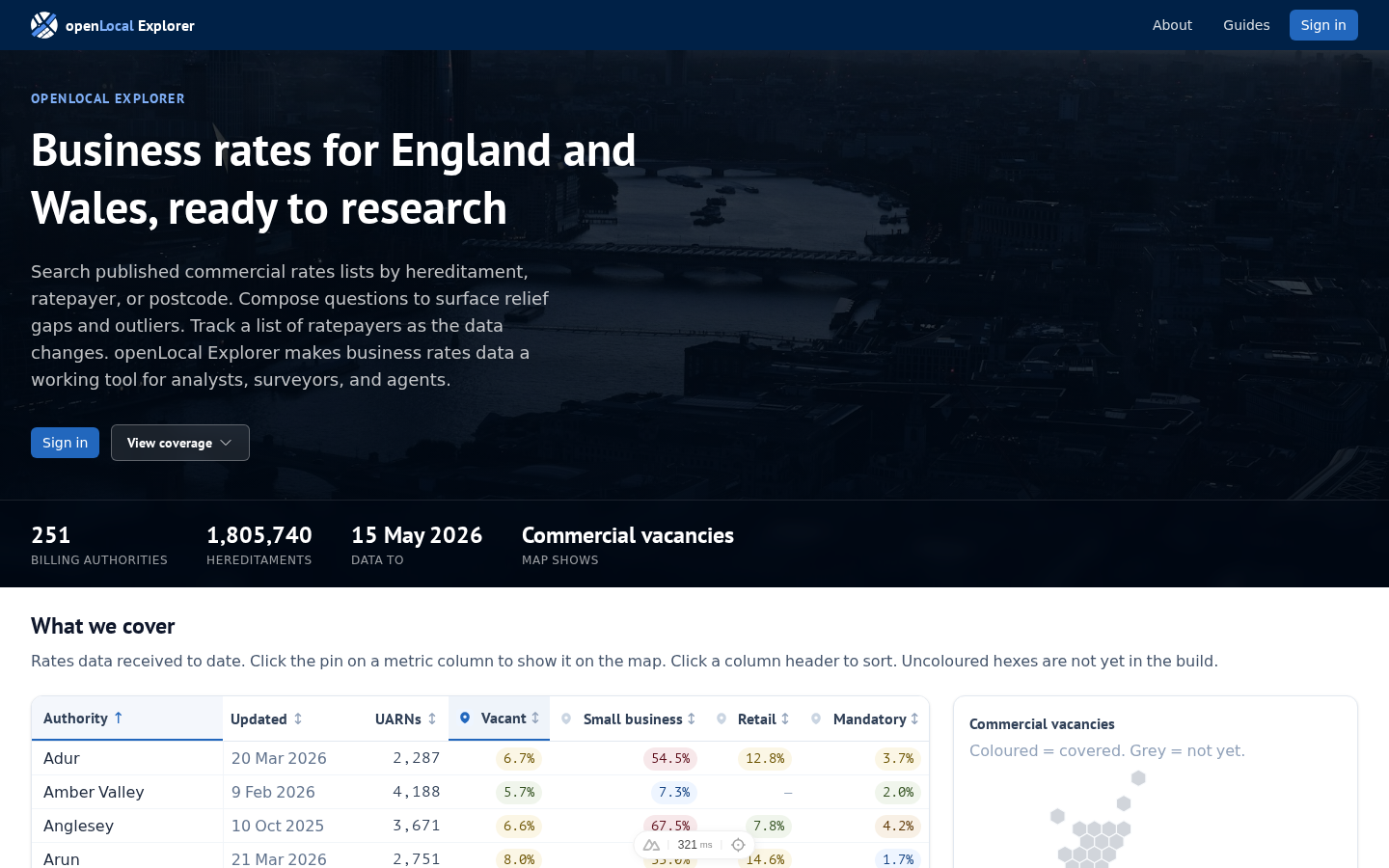
The landing page has three faces. The public landing is what anyone can reach without signing in — a coverage table, a map of England and Wales shaded by coverage, a short framing of what the Explorer does, and the ways in. The first-arrival dashboard is what you see the first time you sign in: a short walk-through pointing at the universal search bar and the three pathways, with the rest of the dashboard mostly empty since you have nothing saved yet. The typical regular dashboard is what you see every other visit: where to start something new, where to pick up, your alerts, and what we have collected. What is waiting for you lives behind the bell in the header.
First-arrival walk-through
The first time you sign in, a short walk-through overlays the dashboard: an opening frame, then one step on each pathway tile. Its point is orientation — which tile fits which question. Search is for a thing you can name: a ratepayer, an address, a postcode, or a reference. Prospect is for a group you can describe but not yet name — compose the description and the Explorer finds who fits. Portfolio is for a list you already hold — paste or import it, and the Explorer matches it and tracks changes. You can step through or dismiss at any time; to see it again, open the ? menu on the dashboard and choose Replay this page's tour (Settings' help reset brings back every dismissed walk-through at once). The overlay does not fire again on the same account from any other device.
How fresh the data is
Below the universal search bar runs a one-line note: "Ratepayer data through Wed 28 May · VOA data through Wed 21 May · next update Wed 4 Jun". The Explorer carries two data streams — ratepayer records and VOA rating-list data — and the strip surfaces both. Ratepayer leads because that is the data the Explorer is built around. Click About the update rhythm → for a short explainer of how often each stream lands and when to expect the next refresh.
Continue where you left off
A small card lists the saved items you most recently opened from this browser — your last search, the portfolio you opened yesterday, the prospecting run you submitted on Tuesday. One click reopens. The list is per-browser: opening the Explorer on a different device shows that device's history, not your full activity. Browsing that did not save anything — a hereditament you peeked at, a results table you scrolled — does not appear here.
Start something new
Three tiles inside one card — Search, Prospect, and Portfolio. Search finds a hereditament, ratepayer, or postcode, and lets you compare valuations side by side. Prospect lets you compose a question — relief gaps, cohort outliers, ratepayer changes — to find business-development opportunities; alerts keep catching matches over time. Portfolio takes a list of reference IDs, ratepayer names, or addresses that you paste or upload, matches it, and tracks changes for you from then on. The trio is always visible.
Sources
The card at the foot of the dashboard is the way to what we have collected. Type an authority's name to open its history, or pick one of the five authorities we collected from most recently; each shows its latest quarter and the day we collected it. All sources lists every authority. It is always there, so it answers I know this was released: do you have it? from the first visit.
What we cover (logged-out page)
The public landing page carries a coverage table of the billing authorities the Explorer holds data for, plus a map of England and Wales shaded by recency. The table lists each authority's region and the date of its most recent update; View all authorities → opens the full list. The map reads the same data at a glance: covered authorities are shaded on a colour scale by how recent their data is, and authorities not yet covered show in grey. Both are public; you do not need to sign in to read them.
Signing in by email
The bottom of the public landing carries the sign-in panel. Enter your work email address and click Send sign-in link; a one-time sign-in link arrives in your inbox. If a colleague has invited you, your invitation email already carries the link; click Claim your account to use it. The Explorer never asks for a password. First-time sign-in lands you directly on the first-arrival dashboard — no extra confirmation page.