Signing in
The Explorer signs you in with a link sent to your email, so there is no password to create or remember. If you prefer a password, you can set one and use it from then on. Your account is created by your organisation's administrator, who adds you by email — there is no public sign-up.
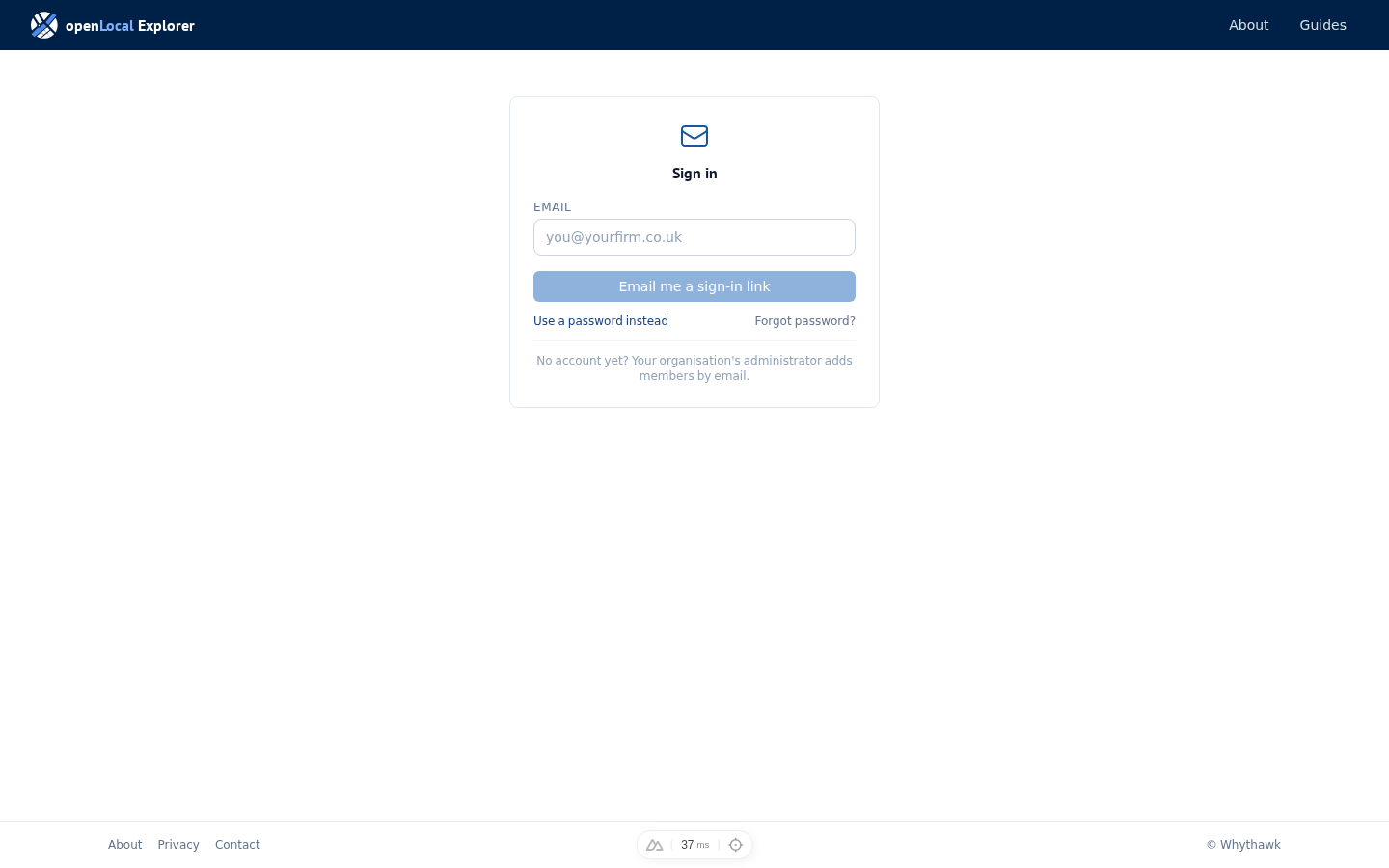
Sign in with a link
Go to the sign-in page and enter your email address. Select Email me a sign-in link, then open the link from your inbox on the same device and browser. The link works once and expires shortly, so use it soon after it arrives. Opening it signs you in and takes you to your dashboard.
If the link does not arrive, select Send again. If it still does not come, your organisation's administrator can check that your access is active — they manage your membership.
Sign in with a password
If you have set a password, the sign-in page opens ready for it: enter your email and password and select Sign in. The page remembers how you signed in last time, so a password is offered first once you have one.
To set a password, sign in with a link first, then open your settings and set one under account and security. If you forget it, select Forgot password? on the sign-in page and the Explorer emails you a link to set a new one.
Two-factor authentication
Two-factor authentication adds a short code at sign-in, so a lost password alone cannot let anyone in. It is optional, and we encourage administrators to turn it on. Switch it on or off in your settings under account and security; the sign-in page asks for a code only once it is on.
When it is on, enter the six-digit code from your authenticator app after your email link or password. If you lose your device, use one of the recovery codes you saved when you set it up.
If you cannot get in
The Explorer tells you plainly when something stops you, and what to do next.
- Your access has ended, or you are not in an active organisation. Contact your organisation's administrator, who can restore your membership. Where the Explorer knows who that is, it shows their email.
- The sign-in link no longer works. Links are single-use and short-lived. Select Send a new link.
- You were signed out on another device. Some organisations allow one device at a time, so signing in here ends any earlier session. This is expected; carry on.
- Your session has ended. Signed-in sessions do not last forever. Sign in again to pick up where you left off.