Search
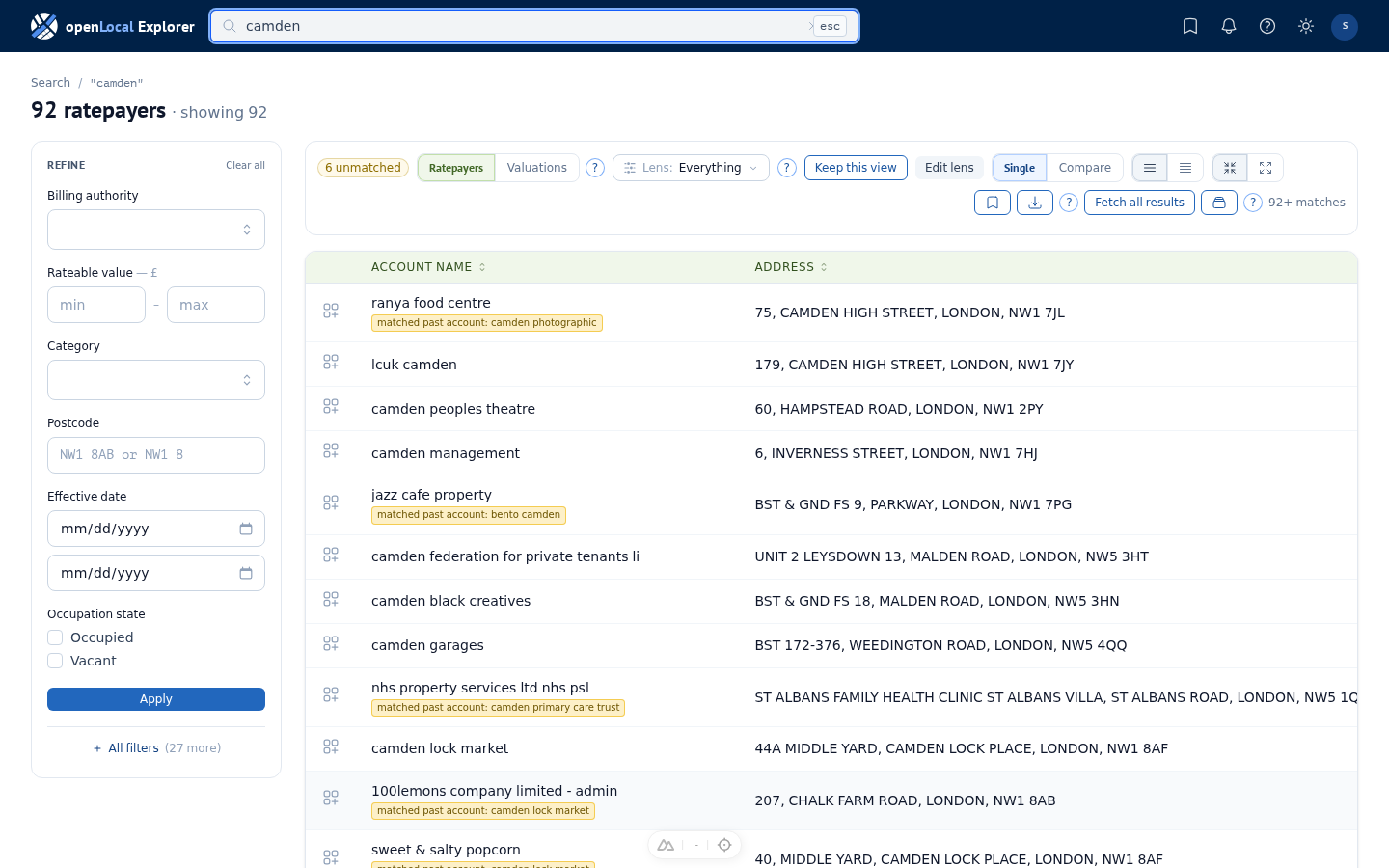
Search finds hereditaments and the ratepayers occupying them. Type any handle — UARN, billing reference, postcode, address, or ratepayer name — and Search picks the right kind of query. Refine with filters (the billing authority filter can first narrow its list to the authorities we collected from since a date, with Collected since…), save a result you want to revisit, allocate rows to a portfolio you'll track over time, or upgrade the search itself into a prospecting query that watches the changing answer set. The page is the same whether you opened a saved bookmark or ran a fresh query; everything is editable, and the count is always what's there now.
Anchor
Choose what each row is centred on. Ratepayers (the default) shows one row per account holder paired with the hereditament they occupy; an account whose hereditament is not a current list entry still shows, marked with why: unmatched ratepayer, not on the 2023 list, deleted from the date the VOA gave, or never in effect. Hover the mark for the detail, such as the VOA's reason and the value the hereditament was last listed at; an unmatched account shows the property address the authority published beside the mark, and the council that sent it. A filter on the valuation hides every unmatched account, since an account with no list entry has no rateable value, category, floor area, or scheme to answer it with. The billing authority filter is the exception: it keeps the unmatched accounts that council sent us. Filters on the ratepayer and on reliefs read the account itself. Every row opens, including an unmatched one: it has a page of its own holding what the council published for it, and [ and ] walk onto it like any other row. Valuations shows one row per hereditament on the list at the date you are reading, whether or not a ratepayer is attached; a hereditament the VOA has deleted leaves, unless you ask for it by UARN or billing reference — useful when you are reading the market regardless of who occupies what. Switch on the fly from the result-frame header; bookmarks remember the anchor you used, and your default lives in Settings.
Lens
A lens is a named set of filters and columns: which filters sit ready in the panel, what they start set to, and how the table is sorted. Every result frame has an active lens. Starter filters is the built-in first view; until you hold a lens, the picker at the head of the result frame offers Keep this view, which saves it as your default, or Save as new, which curates your own — say, "Camden retail" or "Hospitality detail". The same picker switches between them afterwards. A lens never hides filters: everything not promoted stays reachable via + All filters.
First-visit walkthrough
On your first visit, a two-step tour points out the anchor toggle and the lens picker — the two controls that shape every result frame. Step through it or skip it; either way it shows only once.
Compare mode
Compare two rating lists side by side. Switch from Single to Compare in the result-frame header. Pick the two lists (e.g. 2023 list vs 2026 list) and a change-% range. Each row shows the RV in each list with the change in £ and %, plus transition markers when a hereditament has entered or left the list.
Summary columns — floor area, price per m², scheme — stay when you switch to Compare, and read the most recent of the lists you picked. A saved view carrying them opens in a comparison unchanged.
A past date
A search read at a past date shows the rating list as it stood that day: the list in force then (each takes effect on 1 April of its year), with the entries and values the VOA had published by then. Where the VOA has since published a change that took effect by your date, the rateable value carries a short note beneath it: the new value, or deleted, and the date it took effect. Hover the note for when the change was published. A download carries the same in four columns beside the rateable value: Change since, Changed to, In effect from, and Change published. Reliefs read the same way: a row leaves out any relief awarded after your date, showing the award before it where there was one, and a relief filter reads what the row shows. A relief published without an award date always shows, since we cannot tell when it began; add Source published from the lens to see when the record carrying it arrived. A property the VOA added later, with effect by your date, was not on the list that day, so it is not in the result: find it on its own page, by its UARN or billing reference, or with a search that has no date.
Save a search
Bookmark the current query — term, anchor, lens, mode, filters. Press ⌘S (Mac) or Ctrl+S (Windows / Linux), or click Save search. Re-opening the bookmark re-runs the same query against current data; the count is what's there now. To start a variant, use the copy button on its row under Saved. Bookmarks don't track changes themselves — see Allocate to a portfolio below, or Upgrade to prospecting, for change-tracking.
Allocate to a portfolio
A portfolio tracks a chosen set of hereditaments over time with alerts. Allocate rows two ways: select rows and click Allocate selected in the page footer; or tick Allocate as well in the Save dialog to capture both a bookmark and a portfolio in one step. Name a new portfolio inline, or add to an existing one.
Upgrade to prospecting
Prospecting is a different kind of search — it watches the changing answer set and alerts you when it changes. Click Upgrade to prospecting in the result-frame header to open the prospecting wizard with the current term, lens, and filters carried in. The upgrade always starts a new prospecting search; it never adds to an existing one.
More from this ratepayer
Open a result row's actions (the ⋯ at the end of the row) and pick More from this ratepayer to list every hereditament the account holds, current or past, wherever it is. The row you came from is marked as the source. Each row carries the floor area and RV per square metre where a current measurement exists, so the account's estate reads as a comparison set. A past holding that is no longer a list entry carries the same mark as on search (not on the list, deleted from, or never in effect), with the value it was last listed at and its council. Refine, sort, and switch lenses exactly as on search.
Similar hereditaments
Open a result row's actions and pick Like this hereditament to find comparable properties. The anchor's own values show in a strip at the top; the line beneath states the question — Find hereditaments matching any | all of these — and the four cards below it are the dimensions: same valuation grouping, same category, same postcode district, or Proximity (the recommended start). Any takes the union of the picked dimensions and widens the net; all takes their intersection and narrows it, sometimes to nothing (proximity with a category often has no overlap). The category card carries its level — the anchor's SCAT code, or wider, its subgroup or group — and the proximity card its nearest-postcodes target. Picks accumulate until you click Find comparables, so you can compose the question before it runs. The anchor's rateable value arrives as a ready-made ± 50% filter, and a matching floor-area range sits pre-filled in the panel, one Apply away. Where a row's displayed value has drifted from what it matched on — a category amended since selection, say — the row says so inline.
Comparables walkthrough
On your first visit to a comparables frame, a short tour steps through the frame: which of the two questions it is asking (an account's holdings, or hereditaments like an anchor), the similarity dimensions, the filter rail, and the save, download, and portfolio controls. Step through it or skip it; replay it any time from the ? menu's Replay the tour.
The four dimensions, in plain terms:
- Valuation grouping — properties the assessors valued together as one scheme: their own like-for-like set, and usually the strongest comparison.
- Category — the same use, at the level you choose: the anchor's SCAT code (the VOA's own classification, and the default), its subgroup (one of 24 kinds of use — high-street retail, general offices, light industrial), or its group (one of five — retail, office, industrial, leisure, other).
- Postcode district — properties in the anchor's postcode district (the first half of the postcode).
- Proximity — the closest properties by distance, whatever their use. The recommended start.
Match any of the picked dimensions to widen the net, or all of them to narrow it; each row names what it matched on when its displayed values have drifted.
Nearest postcodes
Proximity's Nearest postcodes control (50 / 250 / 500) counts postcode units, not properties. Every property maps to its postcode's centre point, and a dense street shares one point — so the nearest 50 postcodes can hold several hundred properties, and the result count will usually exceed the number on the control. The search radius grows outward until it reaches your target. Widen it if results feel thin; narrow what comes back with the filters.
Manage your lenses
Open the lens picker dropdown to view all your lenses, switch between them, or save the current filter set as a new lens. Built-in lenses are marked; your own lenses show my lens. Full lens management — rename, duplicate, delete — lives with your saved items; per-pathway defaults live in Settings.
Fetch all results
When a search returns more rows than the page can show at once, Fetch all N runs in the background. The table updates in place when ready, and an alert flag in the header notifies you if you've moved on. You can keep working while it runs.